
Compiling Linux Kernel
Linux Kernel Programming Overview
A video series focused on exploring the Linux kernel. In this blog, I am trying to guide readers/ viewers through obtaining the kernel source code, setting up a development environment, and compiling the kernel.
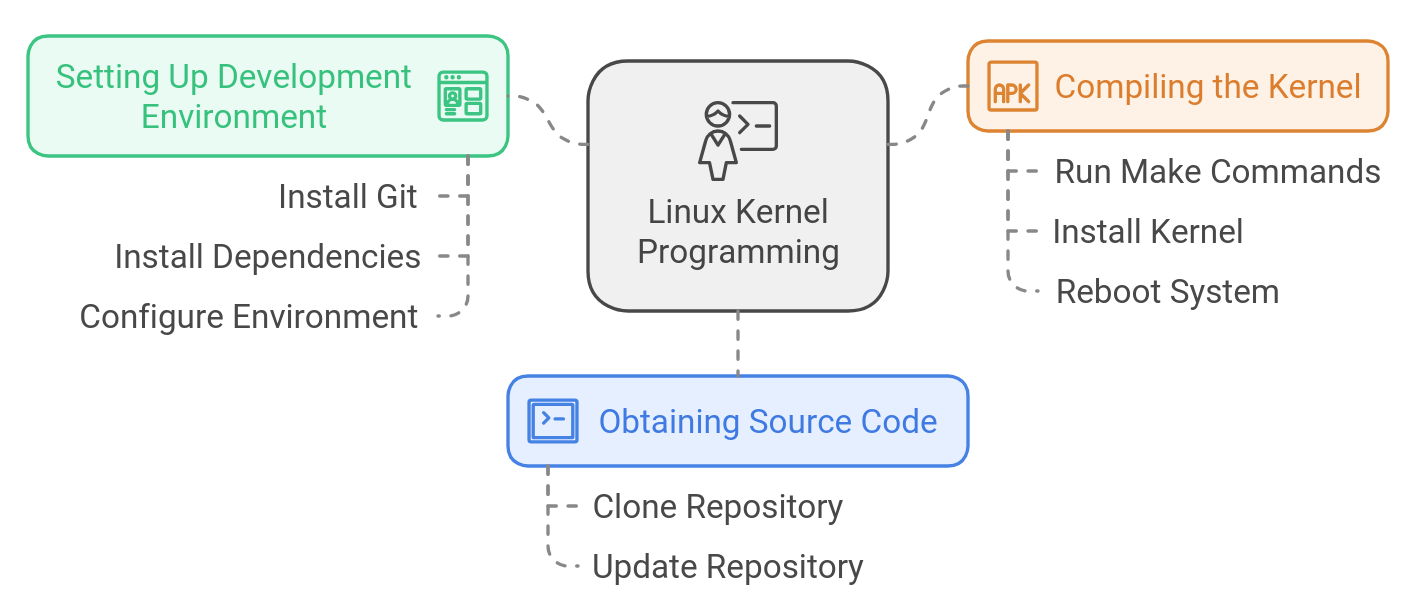
1. Set up the Environment
For Ubuntu
- Install Git and Required Dependencies:
sudo apt update
sudo apt install git build-essential libncurses-dev bison flex libssl-dev libelf-dev
refer Minimal requirements to compile the Kernel.
This command installs Git, essential compilers, and kernel dependencies like
libncurses,bison, andlibssl. - Clone the Linux Kernel Source:
cd ~
git clone https://git.kernel.org/pub/scm/linux/kernel/git/torvalds/linux.git
cd linux
For Arch Linux
- Install Git and Dependencies:
sudo pacman -Syu
sudo pacman -S git base-devel ncurses bison flex openssl libelf
refer Minimal requirements to compile the Kernel.
This installs
base-devel(build tools),ncurses, and other required libraries. - Clone the Linux Kernel Source:
cd ~
git clone https://git.kernel.org/pub/scm/linux/kernel/git/torvalds/linux.git
cd linux
2. Configuring the Kernel
We need to generate or modify the .config file, which controls the kernel build options.
Using Default Configuration:
make defconfig
This creates a default config for your architecture.
or
Using YOUR systems Configuration:
Ubuntu
cp /boot/config-x.xx.xx ./.config
Arch
zcat /proc/config.gz > .config
This copies your present config to the kernel directory.
Custom Configuration (Using Nvim):
- Open the
.configfile for manual editing:nvim .configOr, use a menu-based configuration tool:
make menuconfig- This tool allows you to navigate through the configuration options in a text-based UI.
- Once done, save the
.configfile.
3. Compiling the Kernel
Ubuntu:
- Compile the kernel:
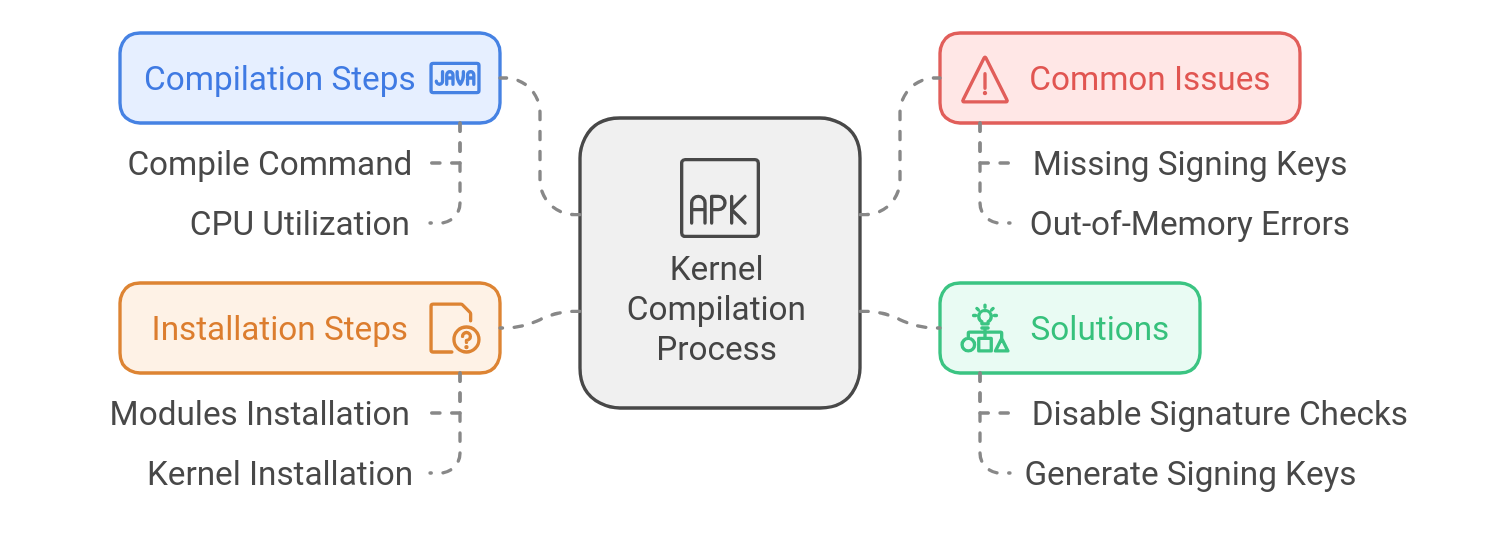
make -j$(nproc)Problem: I encountered errors while compiling the Linux kernel related to missing signing keys. These errors likely stem from the kernel requiring module signature verification, which failed due to missing or incorrect keys.
Solution: To resolve the issue, the user disabled kernel signature checks by using the scripts/config tool to unset CONFIG_SYSTEM_TRUSTED_KEYS and CONFIG_SYSTEM_REVOCATION_KEYS. This allowed the kernel to compile successfully without requiring module signature verification.
Another solution could be Generating Local Kernel Signing Keys.
 scripts/config --disable SYSTEM_TRUSTED_KEYS
 scripts/config --disable SYSTEM_REVOCATION_KEYS
The
$(nproc)option ensures that all available CPU cores are used for faster compilation, but if you are going to compile this on old computer that have very low resouces make sure you use only 1 thread otherwise it will show out-of-memory (OOM) errors or the system becoming unresponsive. - Install the kernel and modules:
sudo make modules_install
sudo make install
Arch Linux:
- Compile the kernel similarly:
make -j$(nproc)The
$(nproc)option ensures that all available CPU cores are used for faster compilation, but if you are going to compile this on old computer that have very low resouces make sure you use only 1 thread otherwise it will show out-of-memory (OOM) errors or the system becoming unresponsive. - Install the kernel and modules:
sudo make modules_install
sudo make install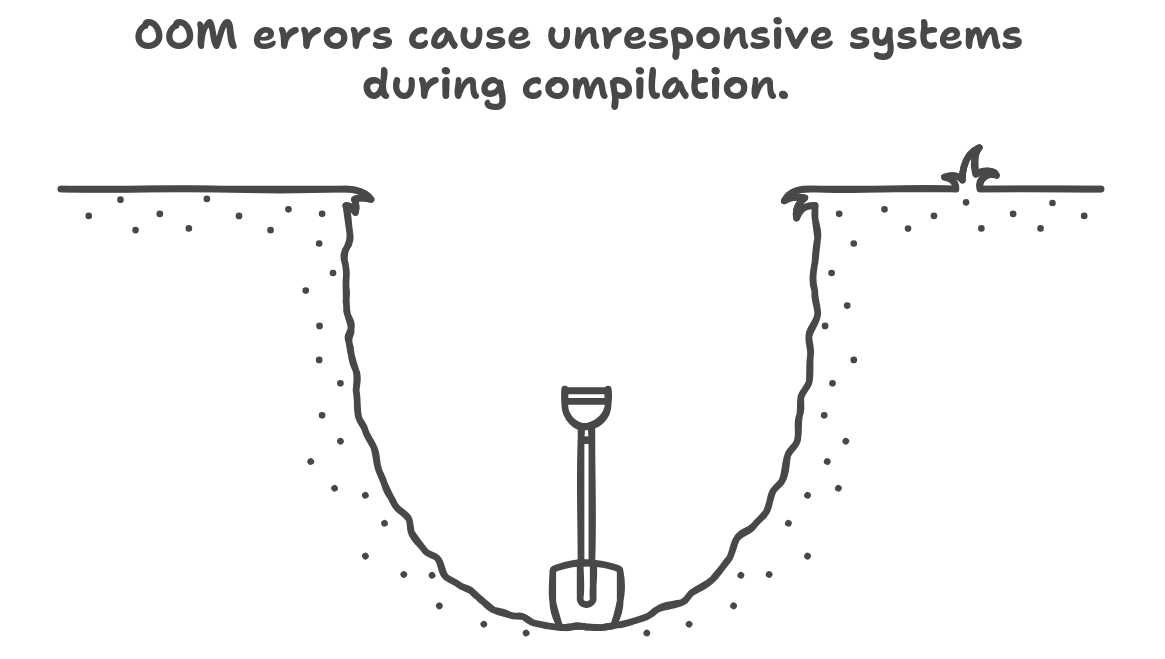
4. Updating the Bootloader (GRUB)
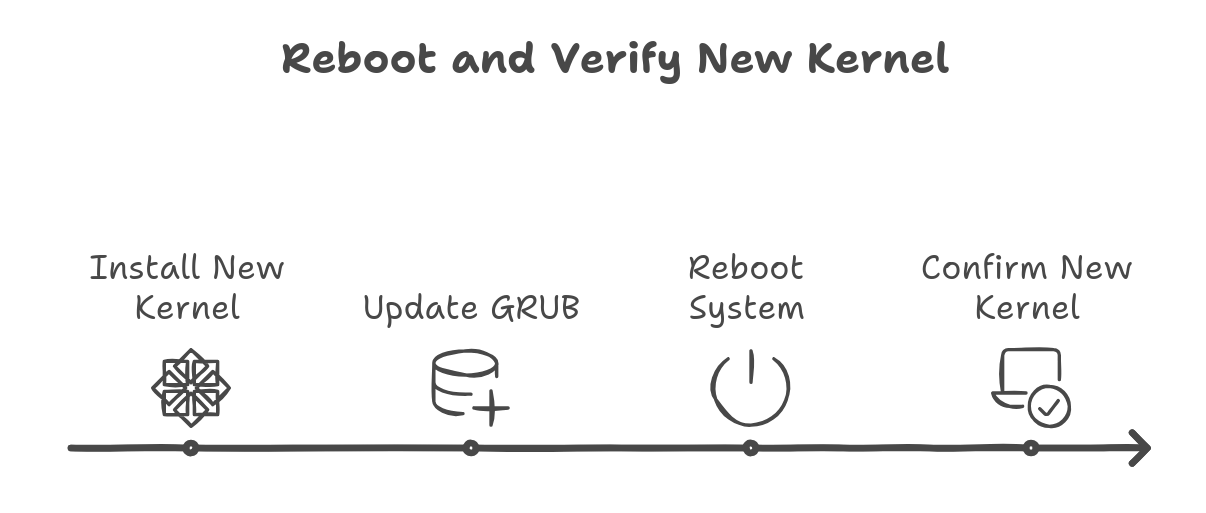
After compiling the kernel, you need to update the GRUB bootloader to include the new kernel.
For Ubuntu:
sudo update-grub
For Arch Linux:
sudo grub-mkconfig -o /boot/grub/grub.cfg
5. Reboot into the New Kernel
Once the kernel is installed and GRUB is updated, reboot your system to boot into the new kernel.
sudo reboot
After reboot, confirm that the new kernel is running:
uname -r
6. Troubleshooting
- Compilation Errors: If you encounter any missing dependencies or errors, make sure to review the logs and install the necessary tools.
- Kernel Panic: Ensure that your filesystem drivers (like ext4) are built into the kernel if you aren’t using an initramfs.
Coming up with more stuff, stay tuned.